We accept:


 01706 214 233
Creating an account has many benefits: check out faster, keep more than one address, track orders and more.
A PC takes the following milliseconds to produce each frame with corresponding fps:
| Frame rate | Time to produce one frame |
|---|---|
| 240fps | 4.17 milliseconds |
| 144fps | 6.94 milliseconds |
| 60fps | 16.67 milliseconds |
Therefore, you save 10ms per frame going from 60fps to 144fps, and 2.8ms going from 144fps to 240fps. Each step does cost more in hardware and returns less; however, you need every advantage you can get when playing competitively and the higher fps helps provide greater motion clarity. Although, if you're at 144fps now and playing well, this upgrade might not be as important as say, a better mouse or a 144Hz monitor with low latency.
If you want 240fps and take full advantage of it, 3 things have to line up: a 240Hz monitor (because you can't see frames your screen doesn't display), a processor fast enough to prepare 240 frames a second (which is the part people get wrong), and settings configured for latency rather than for looks. The graphics card only matters to a point; a decent mid-range card will be more than enough for competitive shooters.
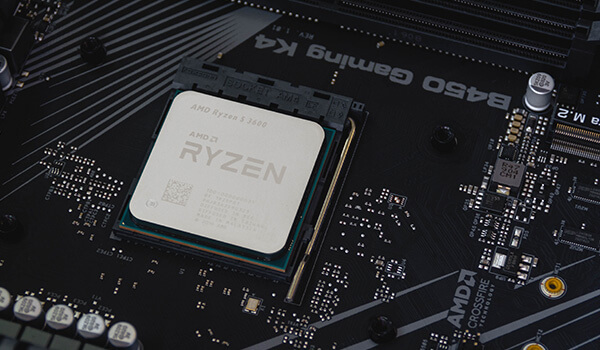
Esports titles are built to run on modest hardware, so they don't have heavy lighting, huge draw distances or dense scenery, which means the graphics card isn't working especially hard. What the processor has to do is, prepare a complete frame, with all the game logic that is involved, 240 times a second.
That's why a build with an expensive graphics card and a mid-range processor can sit stubbornly short of 240fps while the GPU coasts. If your graphics card usage is well below 100% during a competitive game and your frame rate isn't where you want it, that's the signal that you need a better processor.
What helps is per-core speed rather than core count. Large cache helps too, which is why AMD's X3D processors are considered some of the best for gaming and that includes competitive games.
Dropping resolution helps for the same reason, though only up to a point. Once you're CPU-limited, going from 1440p to 1080p won't move the number, because the bottleneck isn't the pixels.
Most of the frame rate advice online is about graphics settings. For competitive play, latency settings matter more, and some of them work against frame rate.
Turn on Reflex, or its AMD equivalent: this shortens the queue of frames waiting to be rendered, which cuts the delay between your mouse moving and the screen responding. The single most useful setting in this list, and it's free.
Turn frame generation off: it does increase your fps, but it uses AI to generate the frames in between the “real” frames. Since those frames aren’t real, it will not register any player inputs during those frames, creating latency. In a single-player game that trade is often worth it, but in a competitive shooter, latency can be the difference between winning or losing the fight.
Cap your frame rate slightly below your refresh rate: with variable refresh rate enabled, capping a few frames under the panel's maximum keeps you out of the buffering behaviour that adds delay at the ceiling. Around 235 on a 240Hz screen is the usual approach.
Turn off V-Sync: on its own, it will create more latency. However, if you have variable refresh rate on with an fps cap, it can help with fps while only creating marginal latency.
Lower the settings that cost CPU time: shadow quality, particle effects and crowd or spectator detail often load the processor. Texture quality mostly doesn't, so you can usually leave that up and keep the game looking reasonable.
One thing to watch while you're comparing machines; if a build is advertised at some enormous frame rate with frame generation enabled, that number isn't the one you care about here.
There's more on the general side of this in our guide to improving FPS on your gaming PC, and on the latency side in how to reduce input lag.

Increasing frame rate doesn’t address the data latency between physical mouse movement and what happens in-game. The data starts from your mouse movement, gets processed in the PC, outputted to the monitor, and then the monitor panel has to change the pixels to represent that mouse movement in-game. Your frame rate covers the middle section only.
On the monitor, refresh rate is the headline, but response time and overdrive tuning decide whether motion is actually clear or just fast. A badly tuned 240Hz panel can look worse in motion than a well-tuned 144Hz one.
On the mouse, a 1000Hz polling rate is the standard and it's fine. Higher rates exist and the returns are small. Modern wireless gaming mice are no longer a latency problem, so choose on shape and weight instead.
Then the network, which for online shooters is the part that most often decides whether you win the duel, and it has nothing to do with your PC at all. A stable wired connection with low jitter is worth more than the last 40fps. Nobody sells that as an upgrade, which is probably why it gets ignored.
For 240fps in current competitive titles at 1080p or 1440p:
Processor: A current-generation 6 or 8 core chip with strong per-core performance. This is where the budget should lean, which is unusual advice and correct for this specific case.
Graphics card: A mid-range card is more than enough; an RTX 5060 Ti or RTX 5070 will comfortably keep up in esports titles, and spending beyond that for competitive play alone is money that would do more in the processor or the monitor.
Memory: 16GB is reasonable; you wouldn’t need more for a competitive shooter. However, if you want to run a lot of background applications like streaming, Discord, video watching, then 32GB will be more suitable.
Monitor: 240Hz or more, with a good response time, as you won’t be able to see the 240fps without it.
Our esports gaming PCs are built around this balance, and there are per-game ranges for Valorant, Apex Legends, Rocket League and Rainbow Six Siege. If you'd rather set the CPU and GPU balance yourself, check out the PC configurator.
Buy the monitor, put the money in the processor, turn Reflex on and frame generation off. Everything after that is smaller than what a stable connection and a well-tuned panel will do for you.
What to read next


