We accept:


 01706 214 233
Creating an account has many benefits: check out faster, keep more than one address, track orders and more.
Frame rate is the number that decides how a game feels. Not how it looks, how it feels: whether your aim tracks smoothly, whether the picture holds together when things get busy, whether an input lands when you expect it to.
Most advice on improving it starts with settings. That is the right place to start, but it is worth understanding what you are actually chasing first, because a lot of people spend money solving the wrong problem.
Your refresh rate is how many times a second your monitor can draw a new image. A 144Hz monitor draws 144. Your frame rate is how many images your PC produces. The two are independent, and you only get the benefit when they line up.
Feed a 144Hz monitor 60 frames per second and it still refreshes 144 times, but you only see 60 unique images. The monitor is not doing anything for you. Push 200 frames at a 60Hz monitor and you see 60 of them, with the rest discarded.
So the target is straightforward: produce at least as many frames as your monitor can display, with headroom for the moments it dips. On a 144Hz screen, aim for 144 minimum and 200 for comfort. On 240Hz, aim for 240.
That target is also what tells you which component to spend money on, which is covered further down.
An average of 120 frames per second sounds excellent. If it is made up of long stretches at 150 and regular drops to 45, it will feel dreadful.
The number that matters is the 1% low, which is the frame rate during the worst one percent of frames. That is where stutter lives, and it is what your eyes actually notice. A machine holding a steady 90 feels better than one averaging 120 with spikes.
This matters when you come to test any of the changes below. Record the 1% low, not just the average, or you will convince yourself a change helped when it did not.
These are no-risk, high-return actions most players skip.
Why: Keeping your graphics card drivers up-to-date is an easy way of ensuring your graphics card continues to perform optimally. GPU vendors continually ship optimisations and bug fixes, so a current driver is the foundation for everything else.
How: Use NVIDIA GeForce Experience (and install the NVIDIA app) or AMD Radeon Software to check/install drivers, or get the latest stable release from vendor sites. After updating, reboot and run a quick benchmark or in-game refresh-rate test.
Validation: Run a 1–2 minute benchmark (built-in or CapFrameX) before/after; look for % change in avg FPS and 1% low.
Windows does not always default to your monitor's maximum. Plenty of people run a 144Hz screen at 60Hz for months without realising.
Press Windows and I, then Display, Advanced Display, and find "Choose a refresh rate". Pick the highest option available.
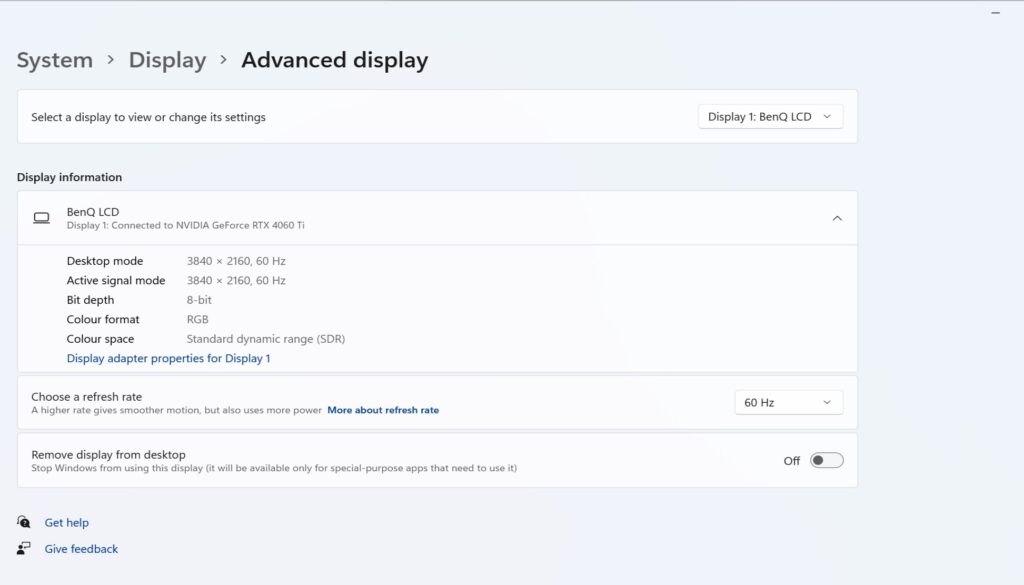
Turn on G-Sync or FreeSync if your monitor supports it. Both are adaptive sync technologies that match the monitor's refresh to your frame rate, which removes tearing and smooths out the dips. Disable V-Sync if you are chasing raw frames and have adaptive sync enabled
Not all settings cost the same. Shadows, ambient occlusion, reflections and volumetric effects are consistently the most expensive and the least noticeable in motion. Drop those first.
Keep textures high if you have the video memory for it, because texture quality is largely free until you run out of VRAM, at which point it becomes very expensive indeed.
Use the upscaler if the game has one. DLSS, FSR and XeSS all render at a lower resolution and reconstruct the image, which gives large frame rate gains for very little visible loss. We have covered how it works in our guide to what DLSS is.
Overlays are the usual culprits. Discord, the Steam overlay, browser tabs, streaming software. Any of them can cost frames and some cause outright stutter.
Enable Windows Game Mode while you are there.
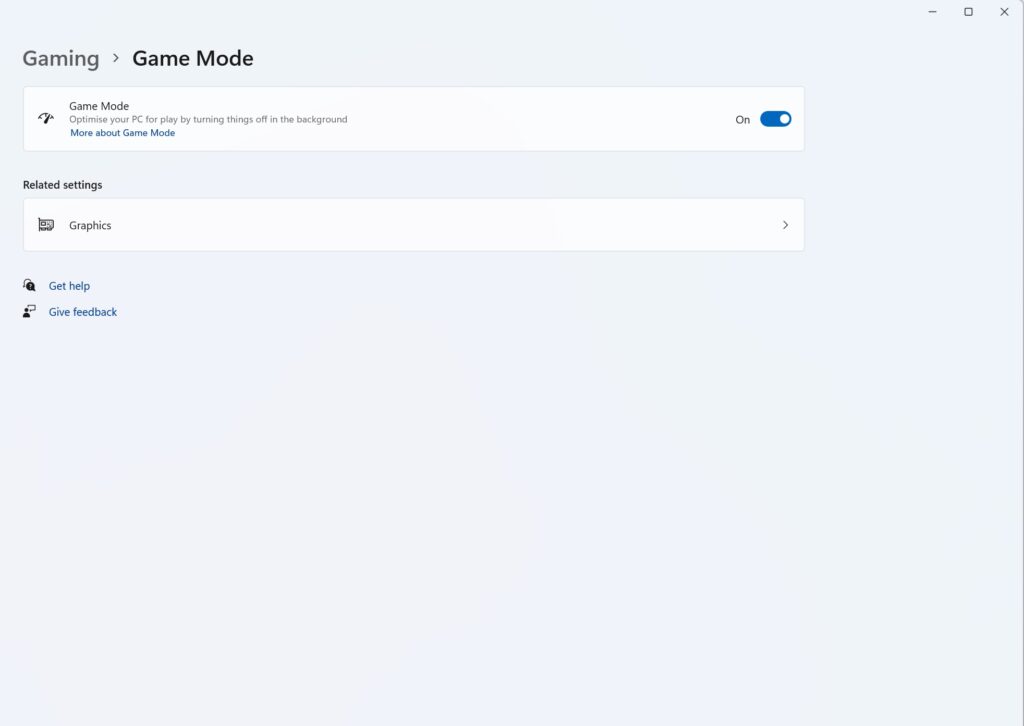
These take a little longer but they stabilise frame delivery rather than just raising the average.
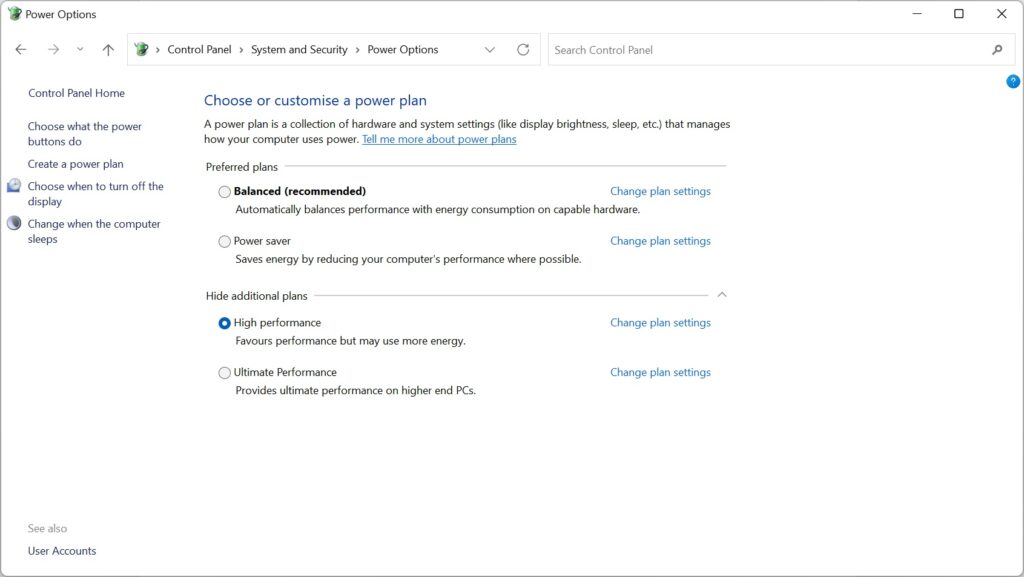
Set your Windows power plan to High Performance. Open Control Panel, then System and Security, Power Options, and expand "Show additional plans".
Then disable unnecessary visual effects, transparency and animations in particular, under Settings,options' and then click the arrow next to 'Show additional plans'. From here, click 'High performance'.
Shader cache
Shader compilation stutter happens when the graphics card has to compile shaders during gameplay rather than beforehand. Make sure the shader cache is enabled in your driver settings and set to a generous size.
It is why a game often stutters badly for the first twenty minutes and then settles. Letting it build the cache is doing something, not nothing.
Move the game to an NVMe drive if you have one. Modern games stream textures continuously, and a slow drive shows up as hitching when you move quickly through a level rather than as a lower frame rate.
Several games now require an SSD outright rather than recommending one.
Latency is not frame rate, but it affects how smooth a game feels and people conflate the two constantly. Use wired Ethernet where you can. No amount of hardware fixes a saturated Wi-Fi connection.
Frame generation
Frame generation creates additional frames between the ones your PC actually renders. It can raise the number on screen substantially, and it changes how the game feels in ways that are worth testing rather than assuming.
The trade-off is latency. Generated frames do not respond to your input, so the picture is smoother while the controls are marginally less immediate. In a single-player game that is usually a good trade. In a competitive shooter it usually is not.
Enable it per game rather than globally.
Increase clocks in small steps, 20 to 50 MHz at a time, monitor temperatures, and validate with a long stress test rather than a short one. Prioritise stability over the last few percent.
A machine that starts fast and slows after twenty minutes is thermal throttling, not underpowered. Check processor and graphics card temperatures under load with HWMonitor or MSI Afterburner.
Above 90 degrees is worth investigating, and dust in the cooler is usually the answer. AMD's X3D processors are particularly sensitive: past around 85 degrees their boost clocks drop away quickly.
Running out of VRAM produces stutter rather than a lower frame rate, which is far more unpleasant and often gets blamed on something else. Monitor it in-game and drop texture quality if you are at capacity.
This is the part that decides where your money goes, and it depends far more on what you play than on what you own.
Run the game and watch utilisation. If the graphics card sits at 95 to 100% and the processor is not busy, you are GPU-limited. If the graphics card is idling and one processor core is pinned, you are CPU-limited.
Quicker version: drop the resolution right down. If the frame rate jumps, the graphics card was the limit. If it barely moves, the processor is.
Competitive shooters, almost without exception. At low settings and high frame rates the graphics card is barely working, and the processor has to produce complete game states 200 or more times a second. Valorant, Rainbow Six Siege, Overwatch 2, Apex Legends.
Simulation and strategy games too, and they get worse the longer you play. Cities: Skylines II as your city grows, Total War late in a campaign, Microsoft Flight Simulator over a dense city.
And crowded multiplayer. Escape from Tarkov is notorious for it, and World of Warcraft is fine in the open world and falls apart in a twenty-player raid.
In all of these, a better graphics card will change nothing.
Single-player games at 1440p or 4K with the settings up. Cyberpunk 2077 with ray tracing, Black Myth: Wukong, Ghost of Tsushima.
Here the processor barely matters and the graphics card is everything.
Competitive 1080p at 240Hz: processor first. A fast current-generation chip with a large cache, paired with a mid-range graphics card, will beat the reverse configuration every time.
1440p at 144Hz: balanced. Neither component should be a generation behind the other.
4K at 60 or above: graphics card first, with 32GB of memory behind it.
Our guide to the best CPU for gaming goes into which side of that line your games sit on, and how much RAM you need covers the memory question.
A graphics card upgrade on an underpowered supply causes crashes and shutdowns rather than poor performance. Check the wattage before you order anything.
Use CapFrameX, RTSS or your vendor overlay. Record average frame rate, 1% low and 0.1% low.
A simple routine that works:
One variable at a time, or you will not know what worked.
Stutter on first load only: shader compilation. Let the cache build.
Fast at first, slower after twenty minutes: thermal throttling. Check temperatures.
Low frame rate but the graphics card is idling: processor limit, or something running in the background.
Stutter despite a high average: frametime variance. Look at overlays, storage and drivers.
Sudden stutter when you turn a corner: out of video memory. Drop textures.
Start with the free things. Drivers, refresh rate, settings triage, background applications. Then the system-level fixes that stabilise delivery rather than raise the average.
When you run out of software, test properly before you spend. The single most expensive mistake in PC gaming is buying a better graphics card to fix a processor problem, and it happens constantly because the symptom looks the same.
If you have reached the end of what tuning can do, browse our gaming PC range, or build your own with our online configurator.


